How to Collaborate on GitHub
Create one repository, push your project, and add your teammates as collaborators so the whole team can work on the same code.
#github #git #collaboration #teamwork #setup
One team, one repository, everybody pushing to it. This is the setup for the Semester Project — follow it once at the start and you're done.
Before You Start
Every member of the team needs their own GitHub account. No exceptions, no sharing an account.
Sign up at github.com with an email you'll still have access to at the end of the semester. Write down your username — your teammates need it to add you.
Create the Repository
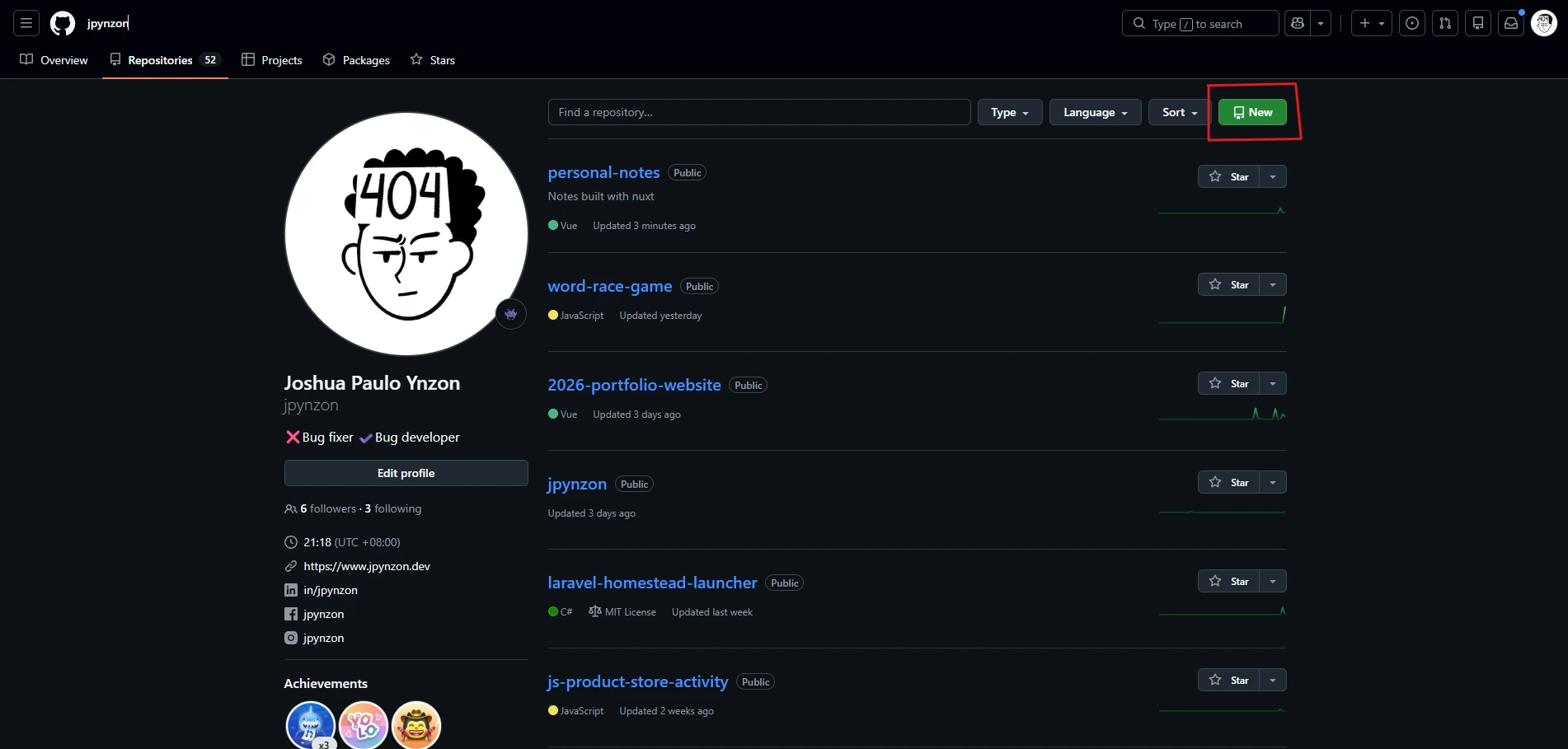
Click New
From your GitHub dashboard, click the New button.
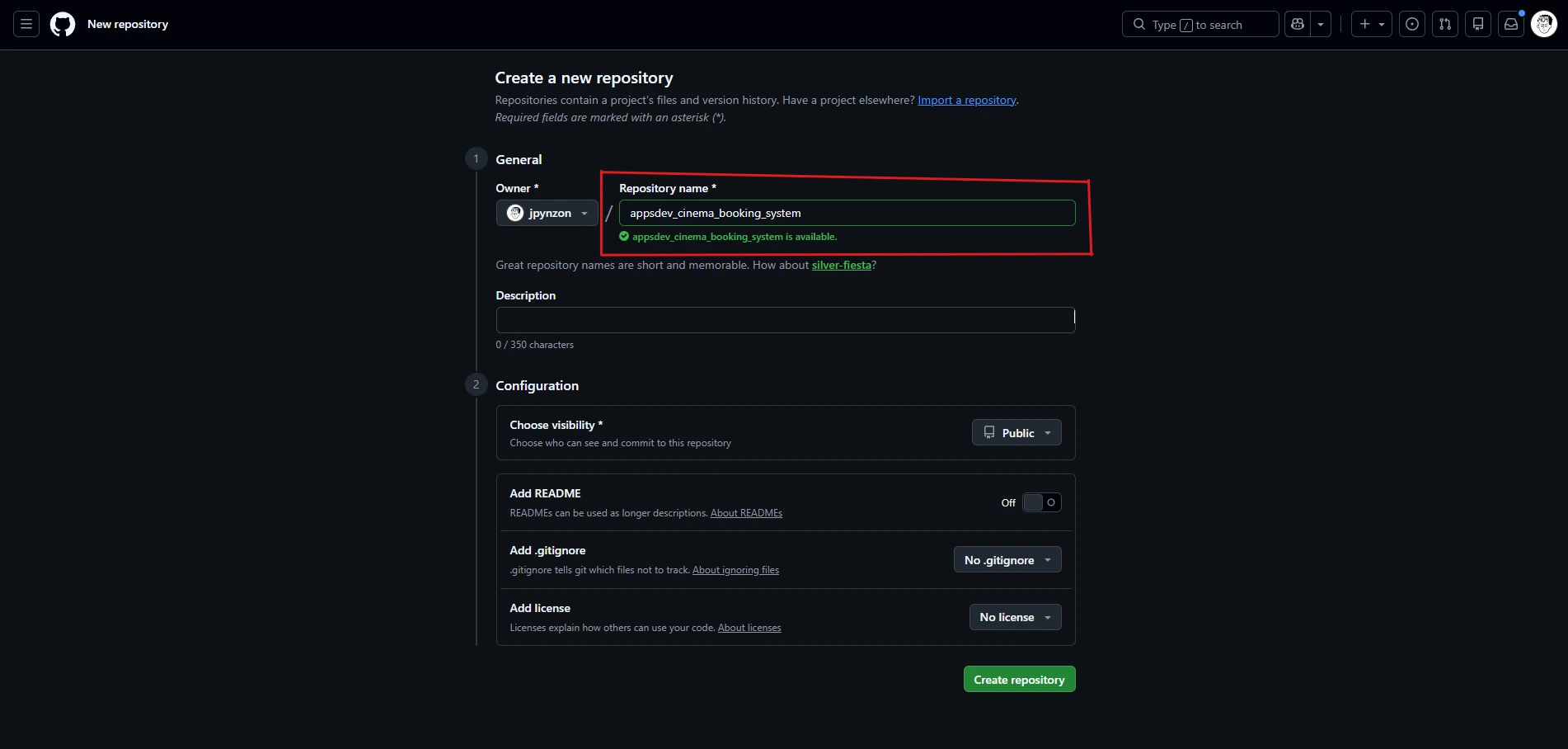
Name it and create it
Give it your project name, then click Create repository.
Use a name that says what the project is — cafe-order-system, not project
or finalproject2.
Push Your Project
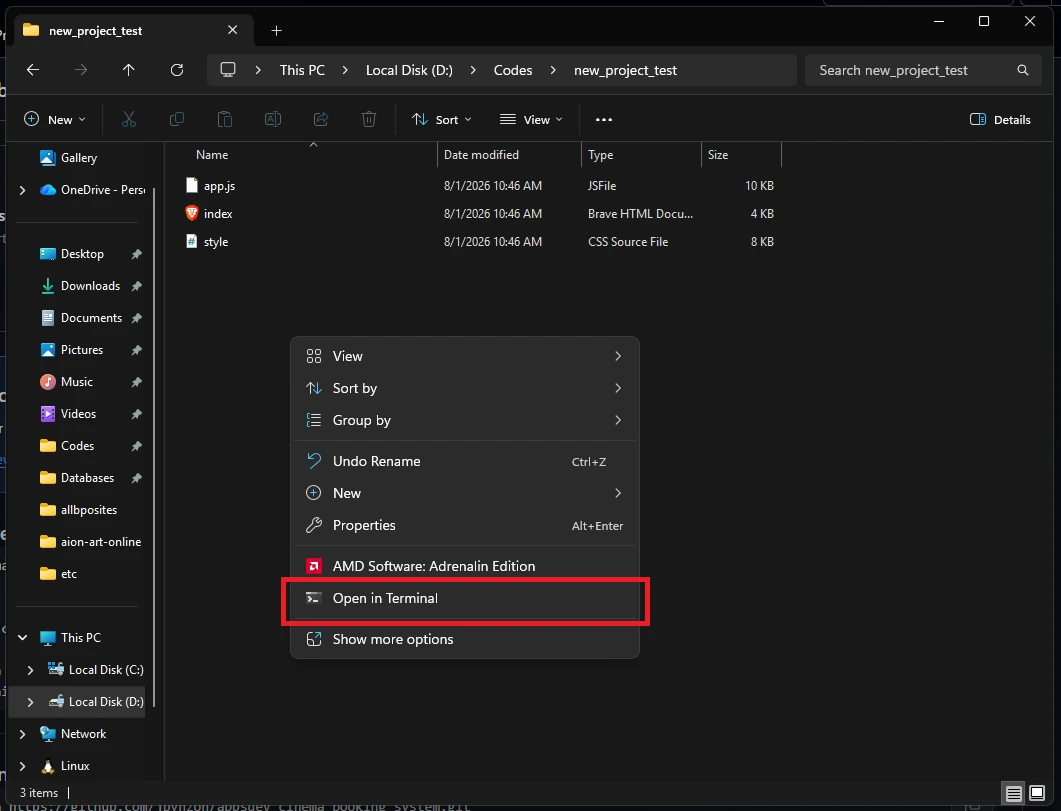
Open a terminal inside your project folder
Go to your project folder, right-click inside it, and choose Open in Terminal or Open Git Bash here.
Follow the instructions GitHub gives you
Your empty repository page shows the exact commands to run. Use the block labelled "…or push an existing repository from the command line".
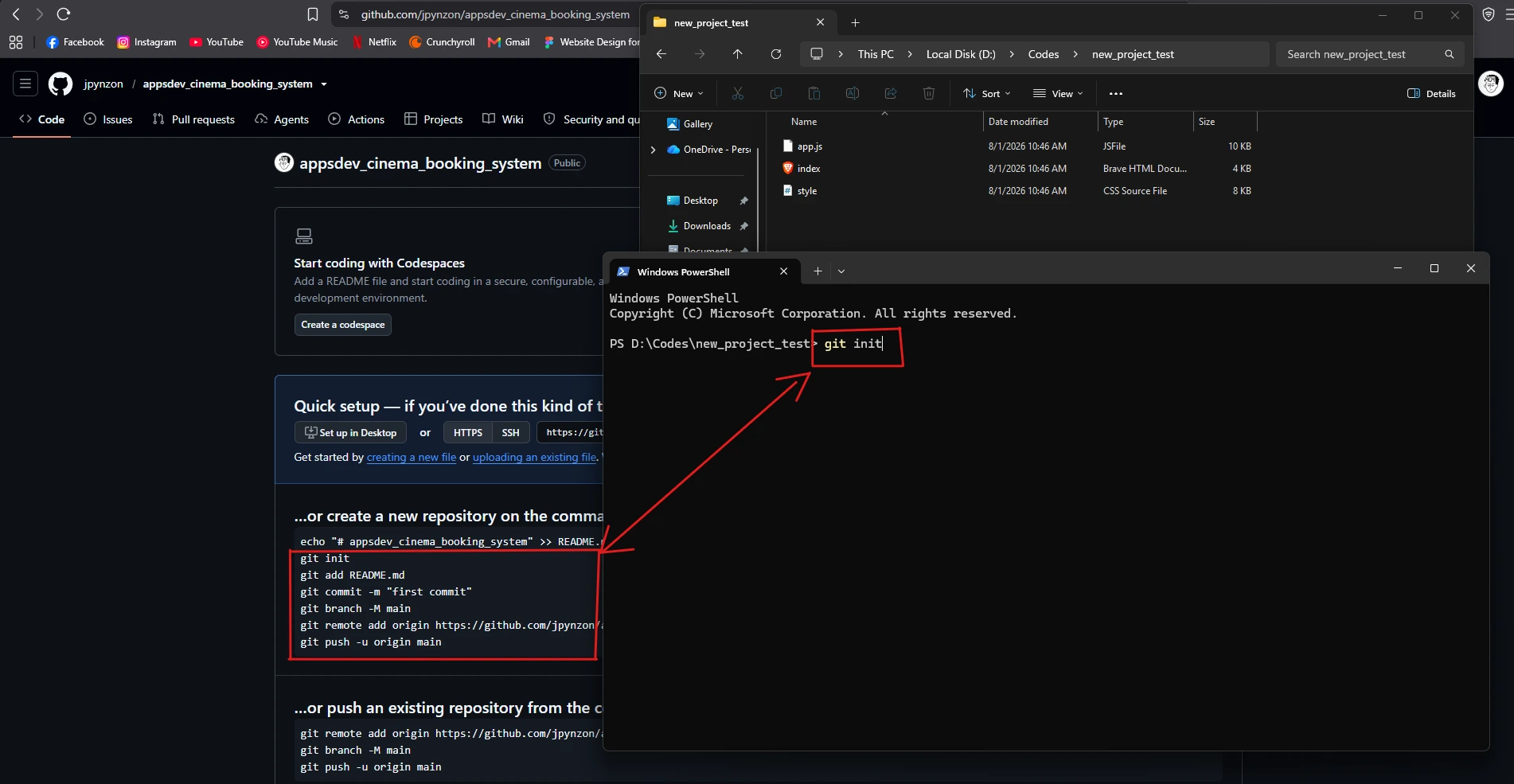
The commands look like this — copy them from your page, since the URL is different for every repository:
git init
git add .
git commit -m "first commit"
git branch -M main
git remote add origin https://github.com/USERNAME/REPO-NAME.git
git push -u origin main
Reload the page
Refresh your repository page. Your files should now be listed there.
If the page still shows the setup instructions, the push didn't work — read the error message in your terminal.
Add Your Teammates
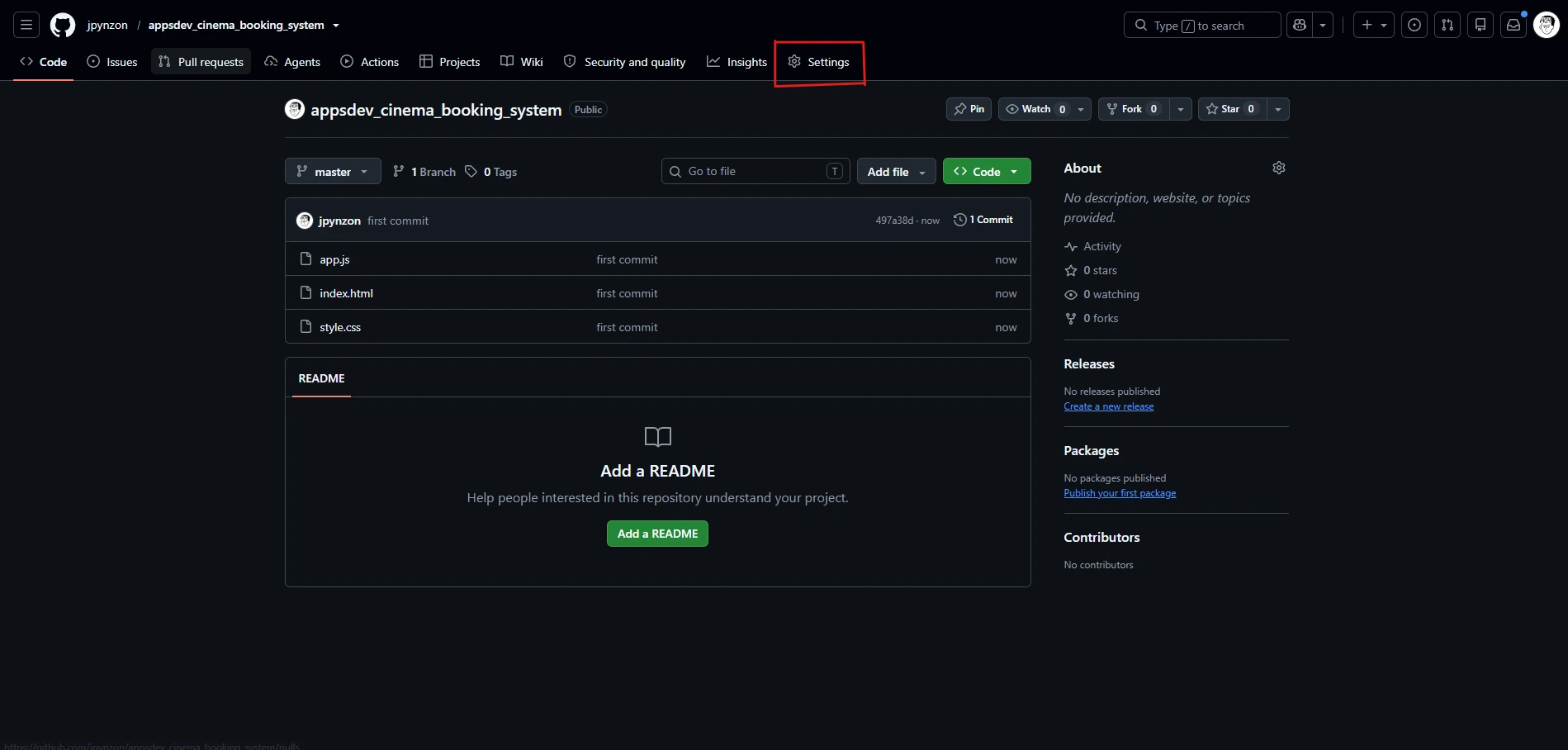
Click Settings
Open the Settings tab of your repository.
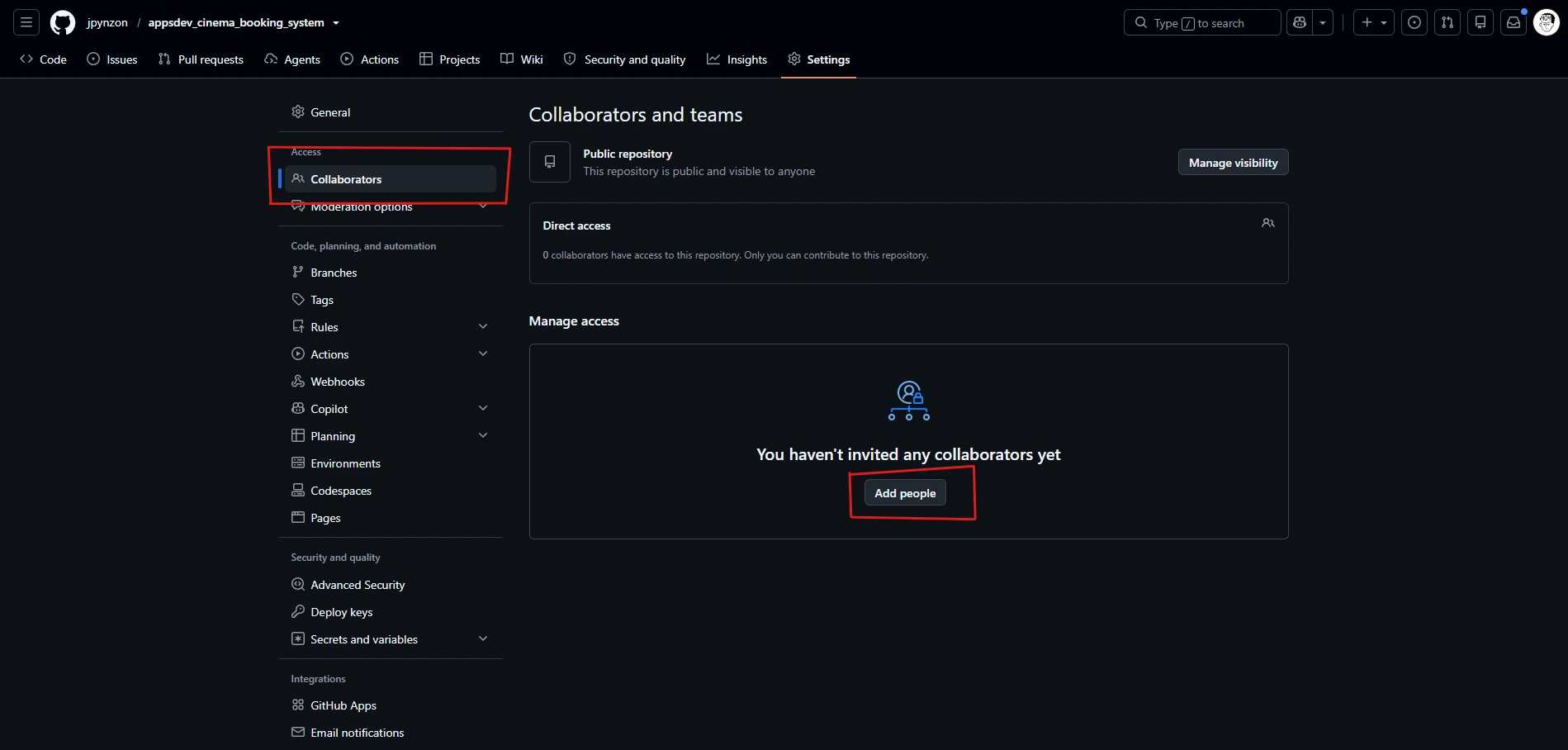
Go to Collaborators, then Add people
In the left sidebar, choose Collaborators, then click Add people.
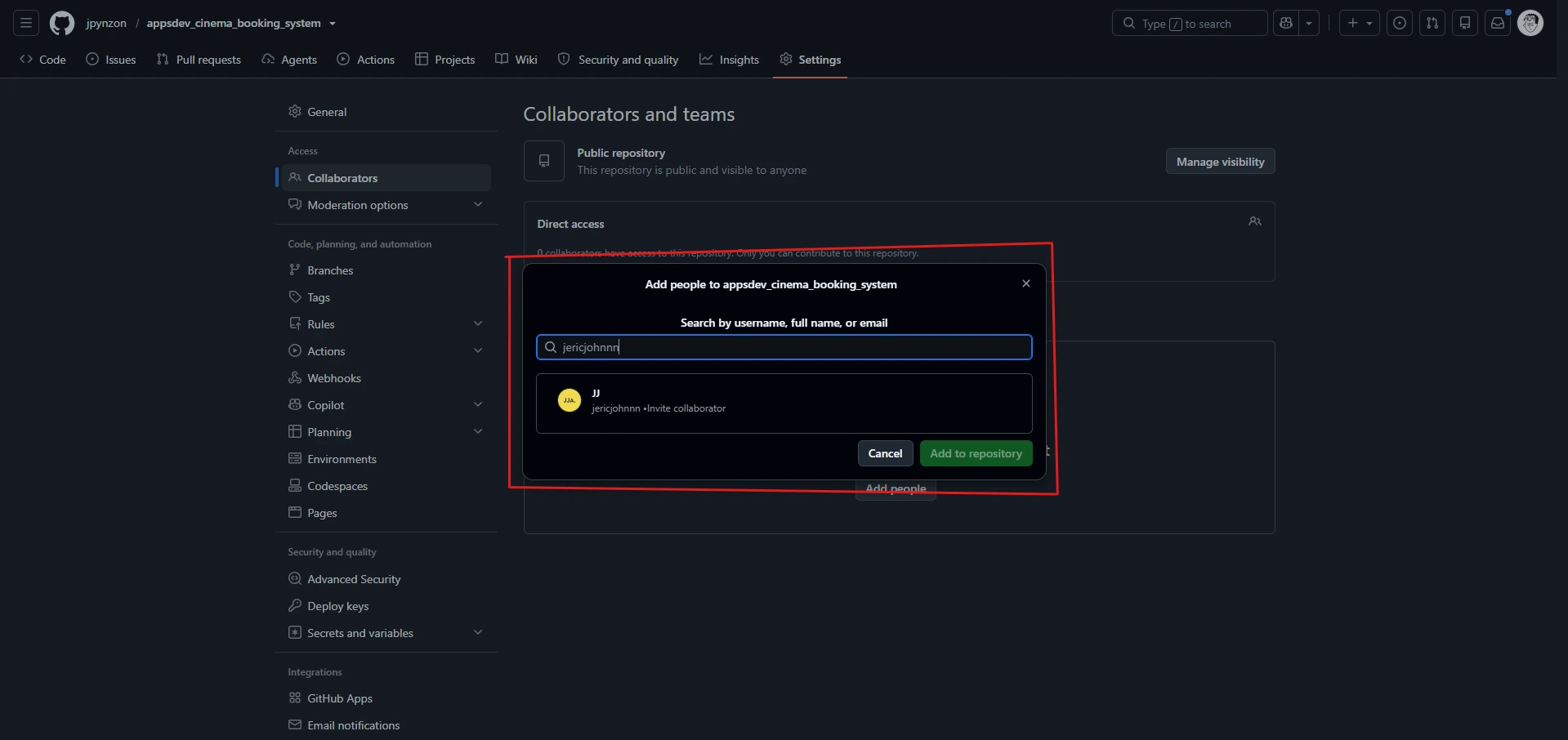
Type their username or email
Enter your teammate's GitHub username or email, then click Add to repository.
Repeat for every teammate.
Your Teammates Join
Once they've accepted, each teammate clones the repository onto their own machine:
git clone https://github.com/USERNAME/REPO-NAME.git
Use the owner's username in that URL — the repo lives in one place and everyone clones the same one.
That's it. They can now push to the repository.
Before Anyone Writes Code
Two things to do once, on every machine.
Set your Git identity
Use your own name and the email attached to your GitHub account:
git config --global user.name "Your Name"
git config --global user.email "you@example.com"
Add a .gitignore
Create a file called .gitignore in the project root:
node_modules/
.env
*.log
.DS_Store
Never commit node_modules/. It's thousands of files your teammates already
have, and it makes the repository unusable.
The Daily Loop
Every time you sit down to work:
git pull
Work, then:
git add .
git commit -m "describe what you changed"
git push
git pullbefore you start, every single time. Four people editing the same
repository will conflict eventually — pulling first turns "an evening lost to a
merge" into "ten seconds of nothing happening."When Something Goes Wrong
| Problem | What to do |
|---|---|
Permission denied / 403 on push | You weren't added, or you never accepted the invitation |
rejected — fetch first | Someone pushed before you. Run git pull, fix any conflicts, push again |
not a git repository | Your terminal is in the wrong folder |
| Pushed the wrong files | Add them to .gitignore, then git rm -r --cached <folder> and commit |
| I have no idea what I changed | git status and git diff |
Full Command Reference
More Git commands than you'll need this semester: Git Cheat Sheet.
Cheat Sheets
Step-by-step references students can follow on their own during class.
Snippets
Small, copy-ready fragments you reach for again and again.